Client work · 2020 · for Noble Installs

Perfect Measures

Measure a window by drawing on a photo of it.

Perfect Measures walked an installer through every window on a job, drawing each measurement onto a photo as a labelled arrow, then gave the office a set of order sizes and a finished PDF for the dealer.

Client
Noble Installs
We built
iPhone, iPad & Android App, Rails Web App & API
With
React Native, TypeScript, Ruby on Rails, Sidekiq, Stripe

perfectmeasures.com

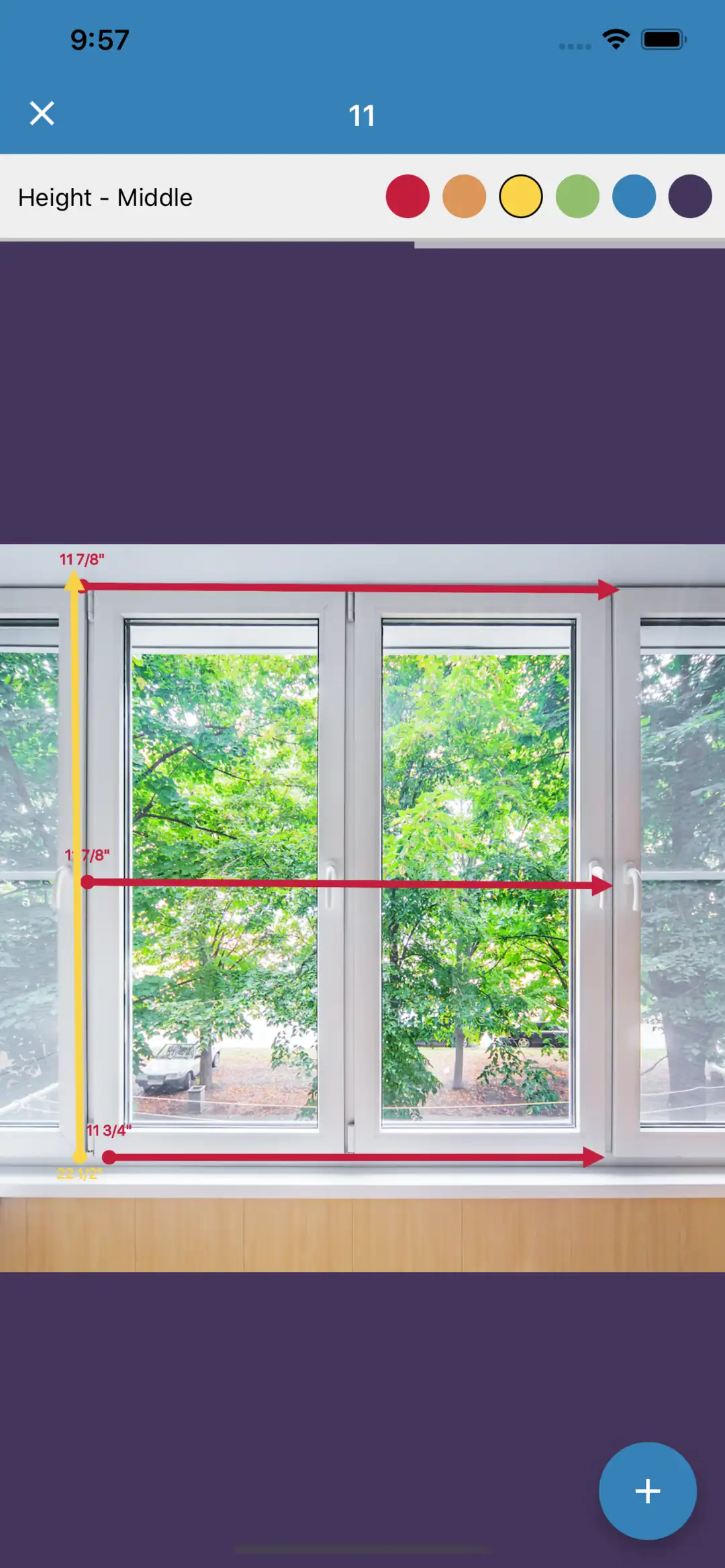
The Draw screen: a photo of a window on purple, with red arrows across it at the top, middle and bottom and a yellow arrow up its left side, each labelled in inches, under a toolbar reading Height - Middle and six colour swatches.
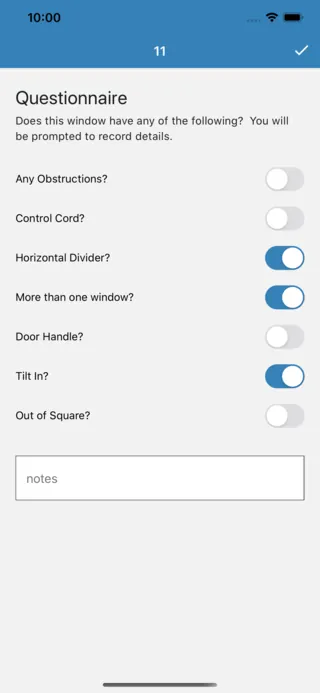
The questionnaire for a window: switches for Any Obstructions, Control Cord, Horizontal Divider, More than one window, Door Handle, Tilt In and Out of Square, with three switched on, and a notes field.
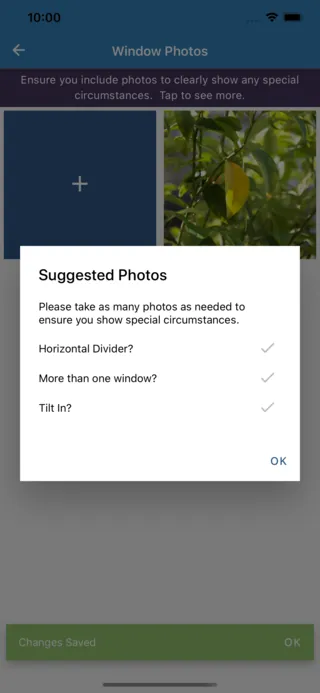
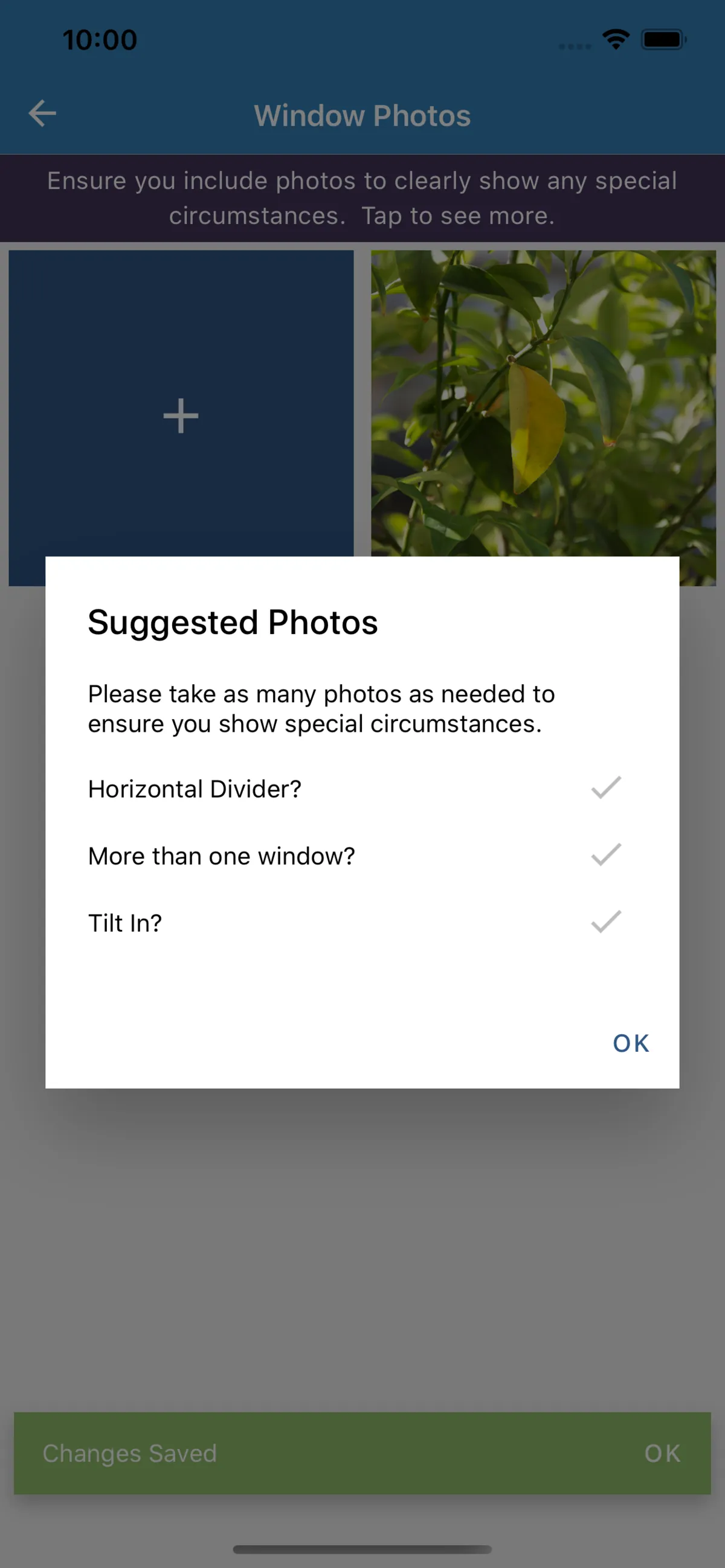
Window Photos, with a Suggested Photos dialog asking for photos of the horizontal divider, the second window and the tilt-in sash, the three things answered yes.

The brief

Guided measuring, for installers

Noble Installs already measured windows for a living, with pen and paper and measurements drawn over photos by hand, and saw a market for software made for the job: a guided way for a team to measure every window, and hand dealers and designers professional paperwork at the end of it.

The challenge

From the window to the order

A measurement is taken in a customer's home, where a signal can't be counted on, and it has to reach the office complete: which width it is, where it was taken, what's in the way, and a picture of the window it belongs to. Then every product needs its own rule to turn those raw numbers into the size to order.

What we made

An app, an API and an engine

We built an offline-first React Native app for iPhone, iPad and Android that walks a measurer through every window and has them draw each measurement onto a photo of it. Behind it are a Rails web app for the office, a separate API for the phones, and a shared engine holding the business logic of both.

Discovery

They’d been doing it by hand.

Noble Installs found us through an internet search. They already did this work in the real world, but without any software for it: the measurements went down with pen and paper, drawn by hand over pictures of the windows, and all of it was very manual. They realized there was a market for software made for exactly this job, and came to us wanting to build a web app or a mobile app.

We took them through our discovery process and worked out the requirements together, and those pointed to a cross-platform app for the people doing the measuring, with a custom backend behind it. Everything that follows grew out of that.

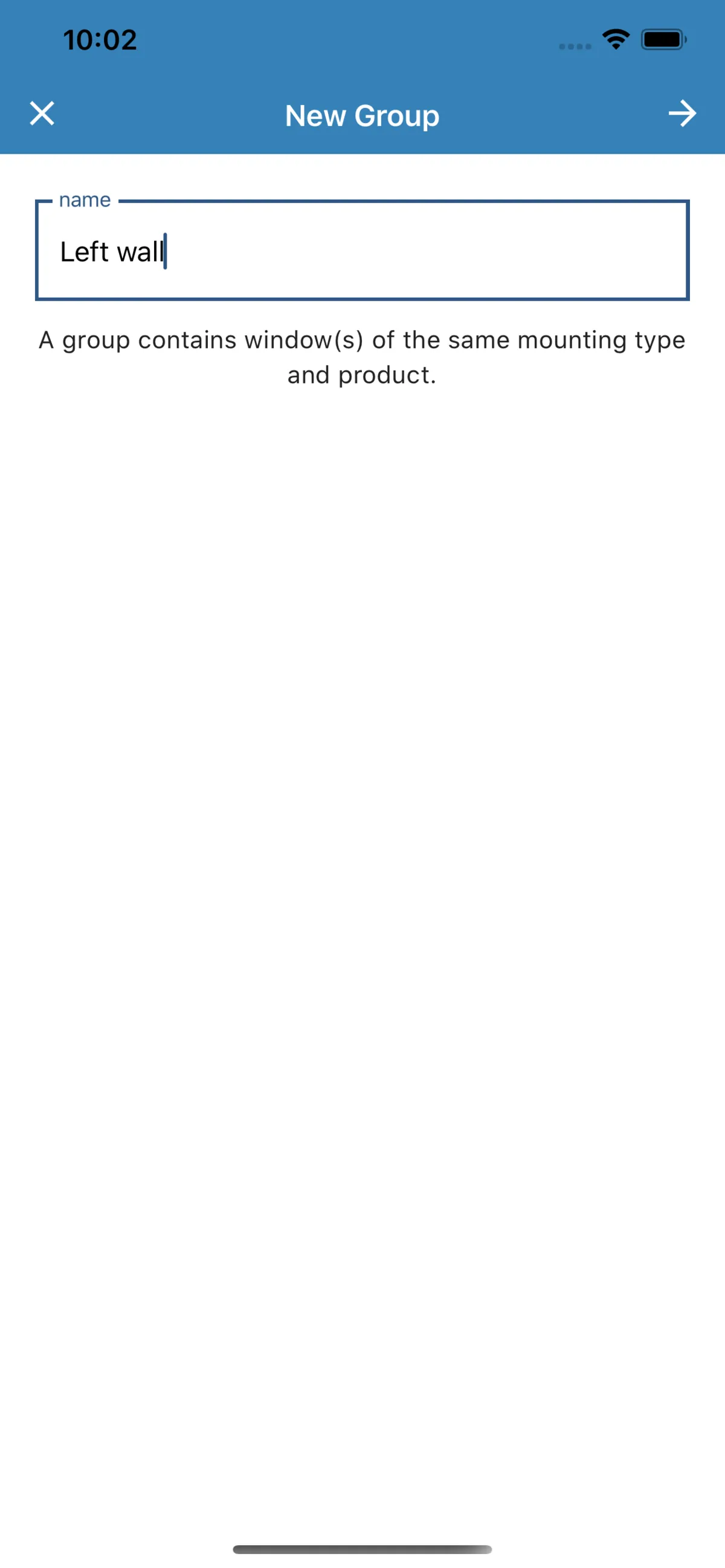
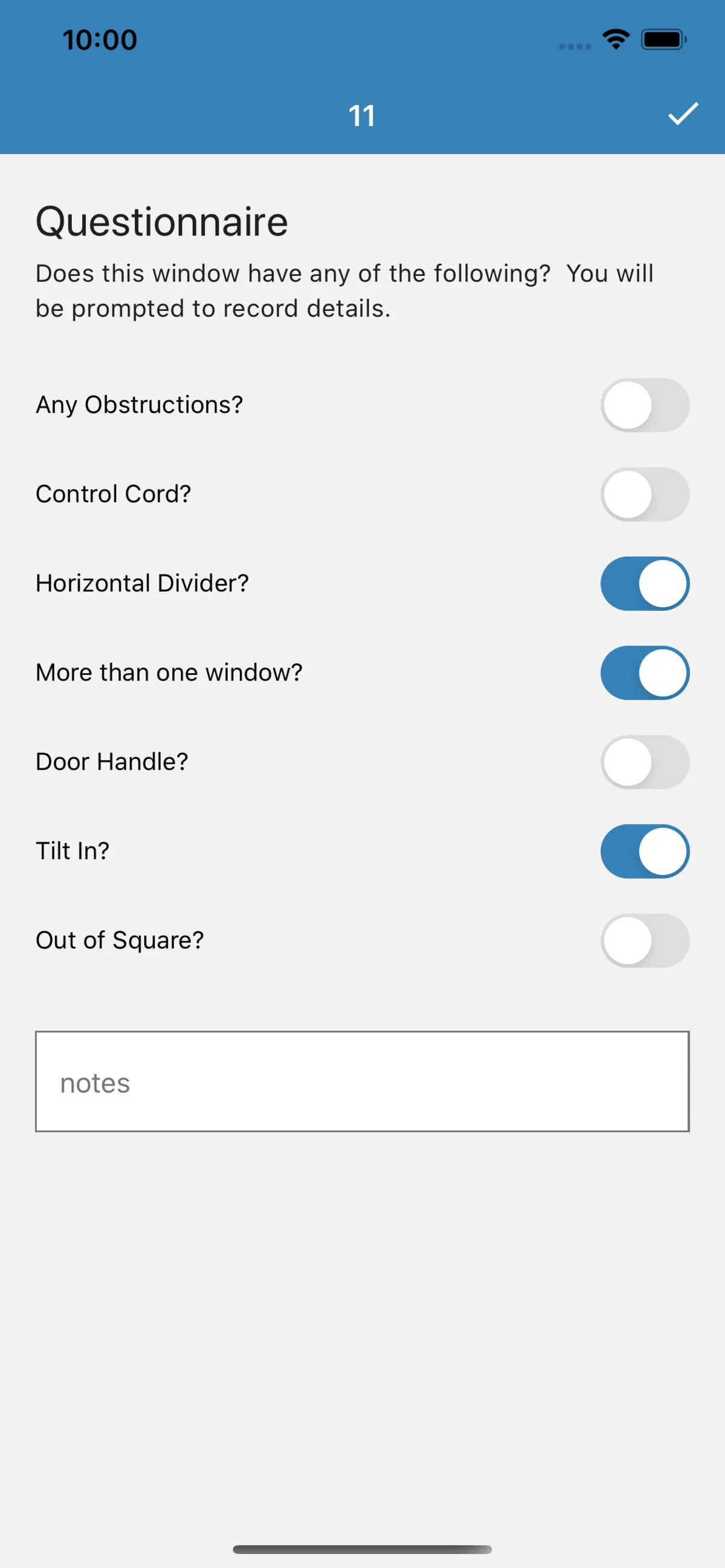
New Group: a name field reading Left wall, and the note that a group contains windows of the same mounting type and product. A window’s questionnaire, with Horizontal Divider, More than one window and Tilt In switched on.

The Flow

Every job, one window at a time.

A job in Perfect Measures is a project: a visit to one client’s address on a service date, with the dealer it’s for and the people who should get the paperwork. Inside it are rooms, and inside each room are groups of windows that sit side by side and share a product and a mounting type, so the product and mounting type are chosen once for the whole run.

Every window then follows the same path: a description and a photo, the measurements drawn onto that photo, a short questionnaire, and any other photos the job needs. The questionnaire asks about the things that change an order, like an obstruction, a control cord, a horizontal divider, a door handle, a tilt-in sash or a window that’s out of square, and each one answered yes comes back as a suggested photo, so the office can see it rather than read about it.

What gets measured depends on the mounting type. An inside mount asks for seven measurements (three widths, three heights and a depth), while outside and drapery mounts ask for nine each.

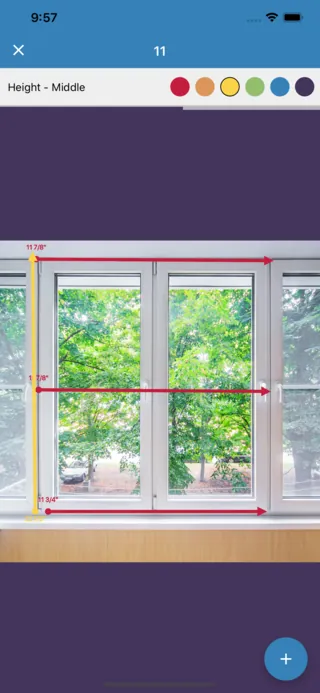
The Draw screen: red arrows across the top, middle and bottom of a window photo, and a yellow one up its left side, each with its measurement in inches beside its start.

Drawing on the Photo

The measurement lives on the picture.

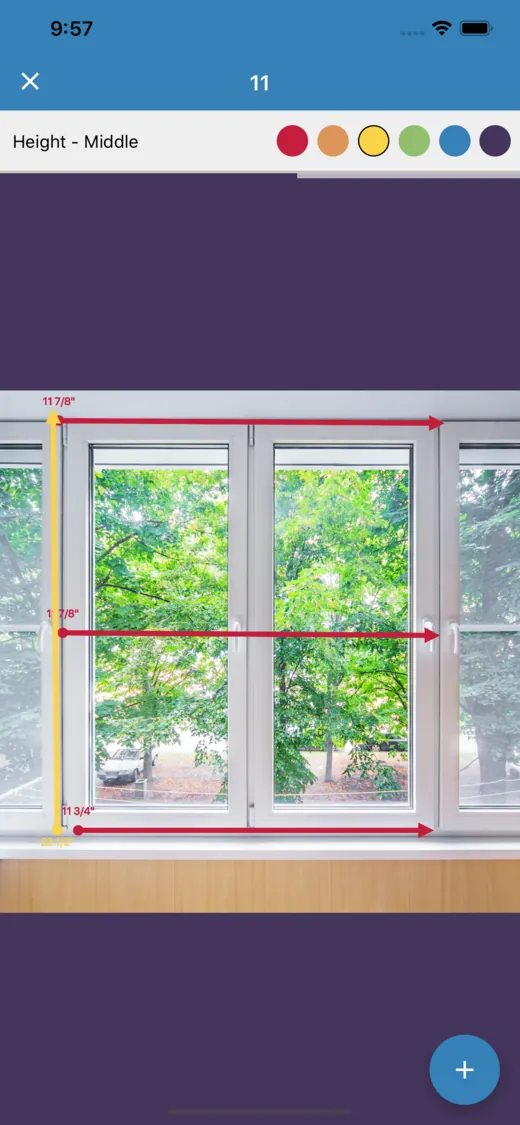
The part of the app I was especially proud of is the Draw screen. Rather than filling in a form of blank fields, the measurer types each number in inches, as a fraction or a decimal, then drags it across the photo of the window, from where the tape started to where it ended. It lands as an arrow with the number beside it, and the screen moves on to the next measurement in the list until every one has been drawn.

Six colours tell the lines apart. A finished line can be dragged to move its end, and a long press opens it again to change the number or the colour. When the drawing is done, the app asks before it locks it for good.

Underneath, it’s React Native’s own animated values and touch handling feeding react-native-svg, inside a view you can pinch and zoom. The drawing surface is laid out at the photo’s own size in pixels, with the zoom as a transform on top of it, so a touch is read in the photo’s own coordinates.

Try it

Draw a Window Yourself

This is the Draw screen rebuilt for the web from the app’s own code: an inside mount’s seven measurements in the same order, the same six colours, arrowheads, dots and labels, and the same lighter, thicker line while it moves.

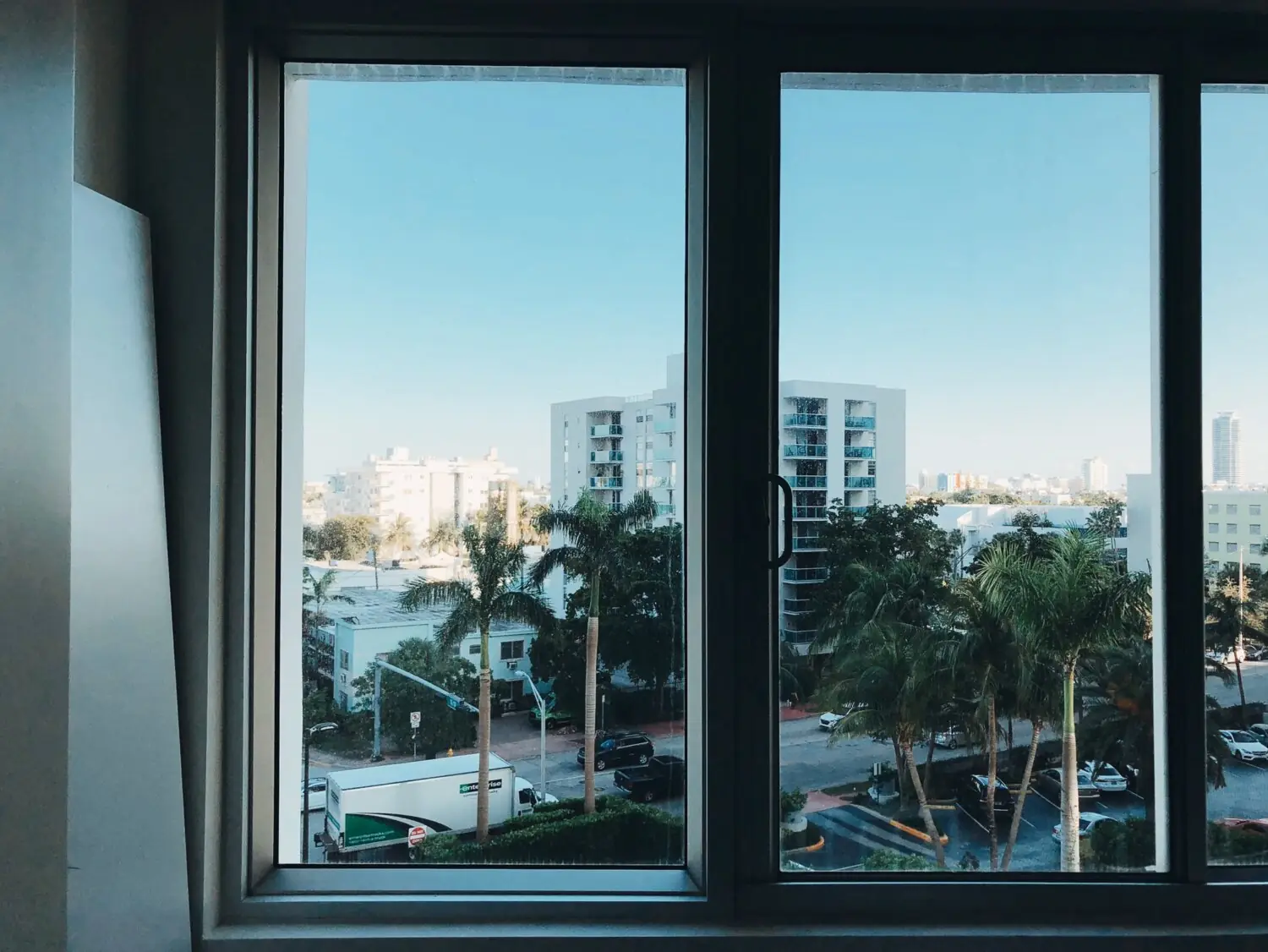
Type a measurement, press Draw Line, and drag it across the window. The photo is the test picture from our own test suite, and the numbers are whatever you type. The panel underneath shows your drawing in the same markup the app uploaded.

Width - Bottom

A photo taken through a wide window of two panes, looking out over palm trees and apartment blocks under a clear sky.

Type the first width, then drag it across the photo.

Your drawing, in the SVG the app uploaded
The Draw screen on iPhone: a window photo on purple, with red width arrows across the top, middle and bottom and a yellow height arrow up the left side, each labelled in inches, under a toolbar reading Height - Middle and six colour swatches.

A Fifth of the Size

Why the drawing is a fifth the size of the photo.

At first the SVG was drawn at the photo’s full size, and Android didn’t like it. React Native draws an SVG into a bitmap behind the scenes, and on a Pixel 3 XL the app crashed once that bitmap passed about 100MB, which took an SVG of only around 800 by 800.

The fix was to keep the drawing’s coordinates at a fifth of the photo’s size and let it stretch to cover the photo, which a vector can do for free. Every touch is divided by five on its way in, the drawing’s viewBox is a fifth of the photo’s width and height, and photos are capped at 1,500 pixels on their longest side before they’re uploaded. Because the viewBox is always in proportion to the photo, the same drawing fits the photo at any size it’s shown, and everything after the phone depended on that.

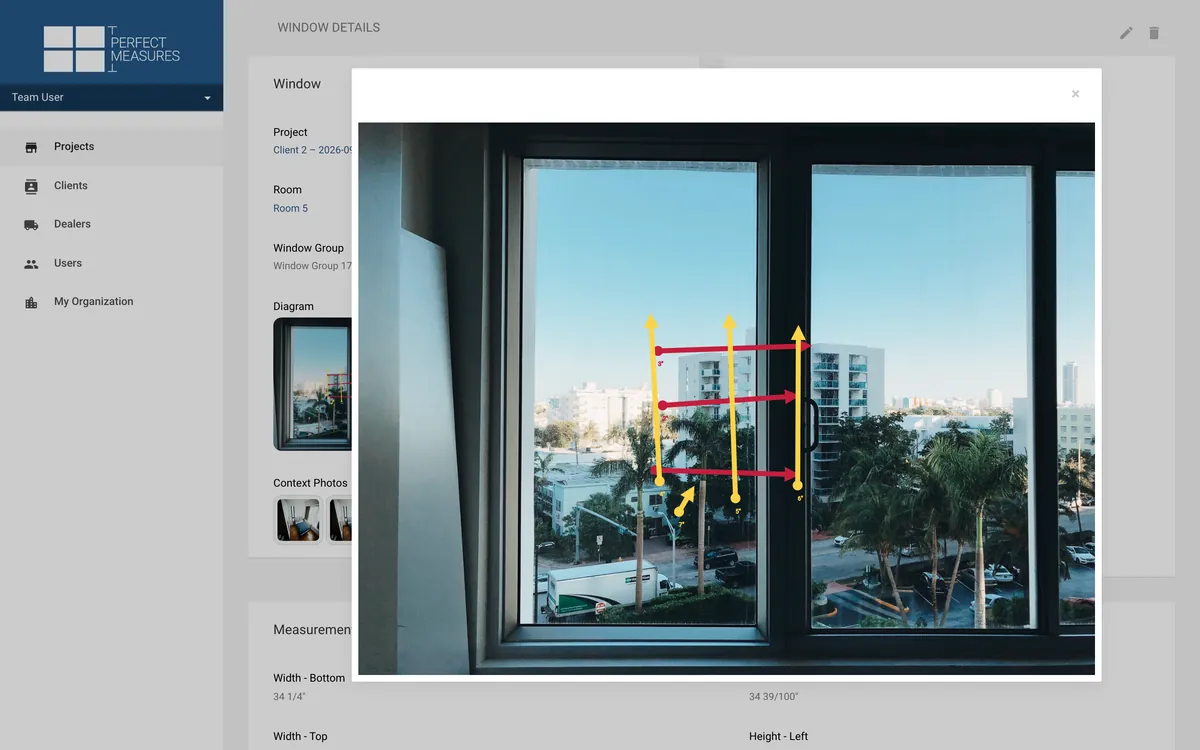
The web app’s window page, with its diagram opened large: a photo of a window with red and yellow measurement arrows over it, above the Perfect Measures sidebar of Projects, Clients, Dealers, Users and My Organization. Seed data.

Export & Composition

A drawing, not a flattened picture.

When a window is finished, nothing is burned into the photo. The app turns its react-native-svg elements into plain web SVG, rendered to a string with React’s own server renderer, and each measurement goes in as a group named for what it measures, like widthBottom or heightLeft, holding its line and its label.

The photo goes up to the API as a JPEG, the drawing goes with it as that string of SVG, and the two stay separate from then on. The web app lays the drawing over the photo on the window’s page, and the PDF does the same, with wkhtmltopdf printing the photo and then the SVG as a second image on top of it.

Getting there took some care. Markers that took their colour from the line worked in the app but not in browsers or in wkhtmltopdf, so every colour got an arrowhead and a dot of its own, and each label’s position moved from its group onto the text itself.

Window Photos, with a Suggested Photos dialog listing Horizontal Divider, More than one window and Tilt In, over a Changes Saved message.

Offline First

Built to work without a signal.

Everything a measurer does is saved on the phone first, in a SQLite database through TypeORM, and the app works the same whether it’s online or not. Each new record queues its call to the API, and while there’s a connection the queue is tried every five seconds, ten calls at a time, up to 25 times each.

A window can’t reach the server before its room, or a room before its project, so a record whose parent hasn’t been sent yet simply fails and waits its turn, and the order sorts itself out as the queue drains. The app says plainly when you’re working offline, and warns before a logout that anything not yet sent will be lost.

It was built on Expo, so a fix could go out over the air, without waiting on a new build to get through the App Store and Google Play.

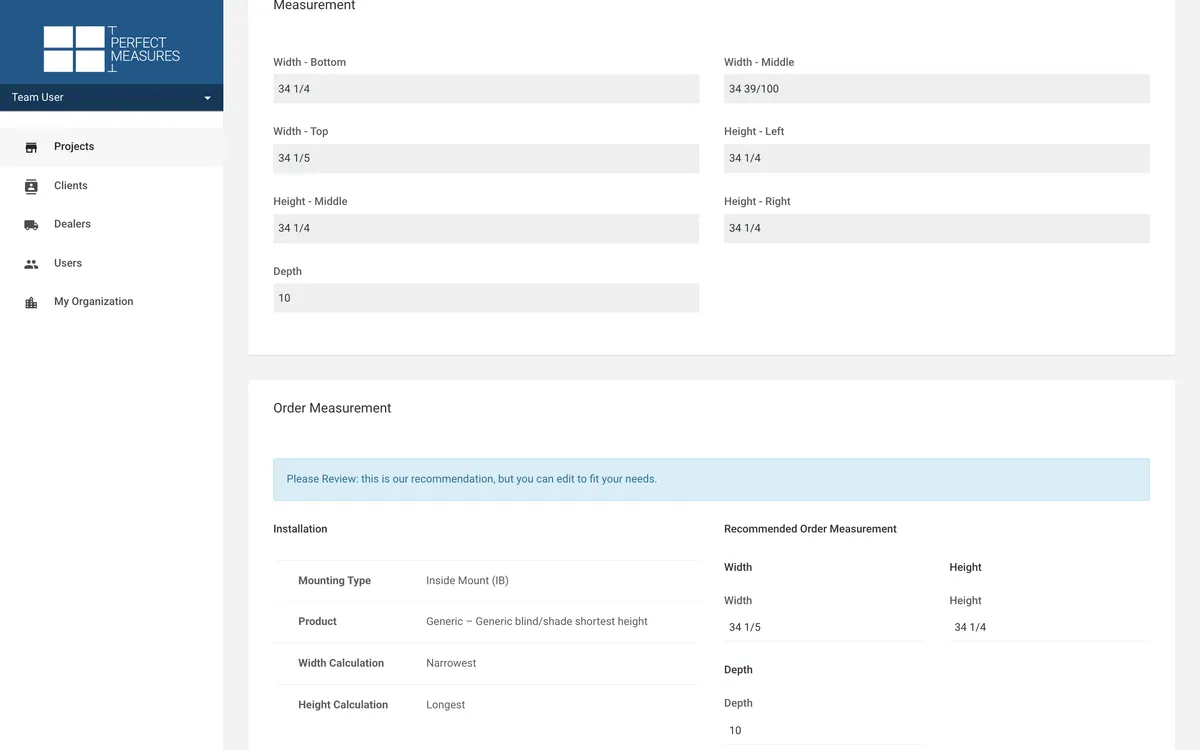
Editing a window in the web app: the measurements from the field, greyed out, above an Order Measurement panel that says ‘Please Review: this is our recommendation, but you can edit to fit your needs.’, with the product’s Narrowest width and Longest height rules beside the editable width, height and depth. Seed data.

The Office

From raw numbers to an order.

The raw numbers are only half the job. Each product in the catalogue has a rule for each mounting type it can be fitted with, like the narrowest width and the longest height, or the widest plus three inches, and when a project goes to review a background job uses those rules to turn each window’s measurements into the size to order.

In the web app, the installer’s office staff go through the project and see every window with its drawing, photos and answers. The order size arrives as a recommendation they can correct where they need to, while the measurements from the field stay exactly as they were taken.

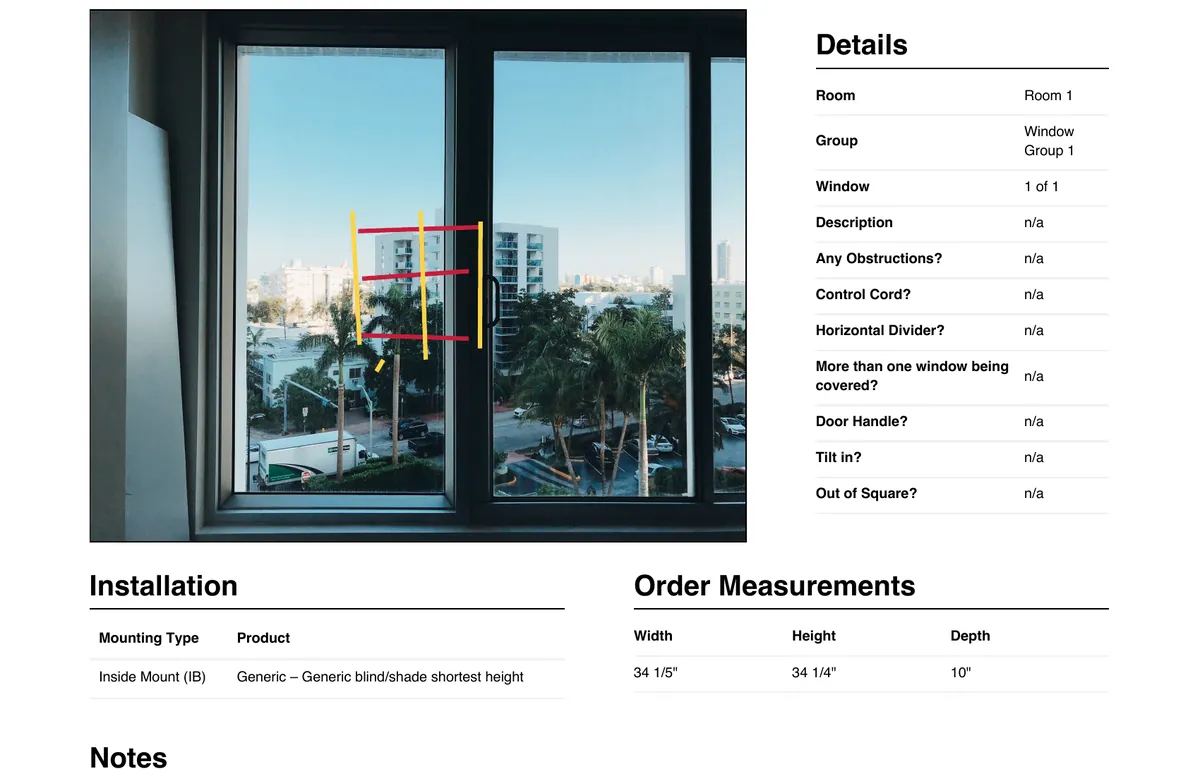
A window’s page of the PDF: the photo with its measurement lines printed over it, beside the window’s details and questionnaire answers, and below them the installation, the order measurements and the notes. Seed data.

The Paperwork

A finished PDF for the dealer.

Completing a project renders its PDF: a page for each window with its drawing, details, order sizes and a QR code, then its photos six to a page. The dealer’s people get an email with a signed link to a page where they can download it, so nobody has to sign in to get their paperwork.

Installers could sign themselves up and pay through Stripe, on a Business plan for a team or an Individual plan for one person, and the office side was built on lotus_admin, our own admin gem for Rails.

The Craft

One engine, two apps

The business logic lives in a private Rails engine, a gem holding every model, migration, background job and mailer, which the web app and the API both install. Neither app has migrations for its own data, so their databases couldn’t drift apart, and each takes a new version of the engine as a deliberate change. It went from its first release to 1.2 in five months, across 73 tagged versions.

Separate, so each can scale

The API and the web app ran as separate apps on Heroku, so traffic from phones in the field and from the office could grow on their own. Slow work happened off the request in Sidekiq, with PDFs in a queue of their own, and photos and PDFs went to S3 rather than living on a server.

An API that says what went wrong

The phones talked to an API-only Rails app with a token that lasted 30 days, checked against the subscription on every request. Each kind of failure had its own status, from an expired token to a record that isn’t there to a step the project isn’t allowed to take, and the whole contract was written down in API Blueprint.

Tested

There are around 500 RSpec examples across the three Rails projects: about 250 in the engine, about 180 in the API and about 60 in the web app, including browser tests of the office’s screens. The engine shares its test factories with both apps, so every project builds its test data the same way.