Client work · 2019 · for Windrock Properties, LLC

Windrock Park

The park's trail map, with no signal needed.

Windrock Park sold its trail map on paper. We made it an app for iPhone and Android that downloads the whole map once, then shows riders where they are on it anywhere in the park, signal or not.

Client
Windrock Properties, LLC
We built
iPhone & Android App
With
React Native, Expo, Google Maps, In-App Purchases, fastlane
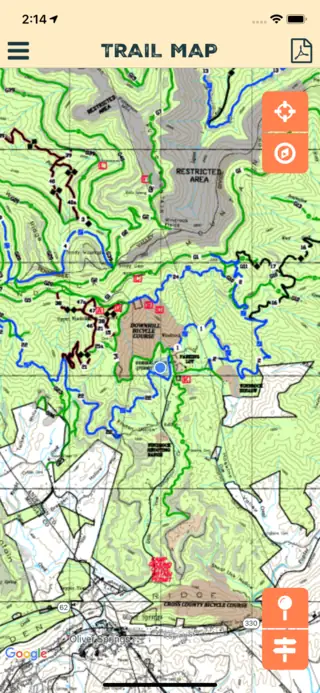
The Trail Map screen: the park's topographic trail map in green, with trails in blue, green, black and dark red, a blue dot by the parking lot, and orange buttons down the right under a beige Trail Map header.
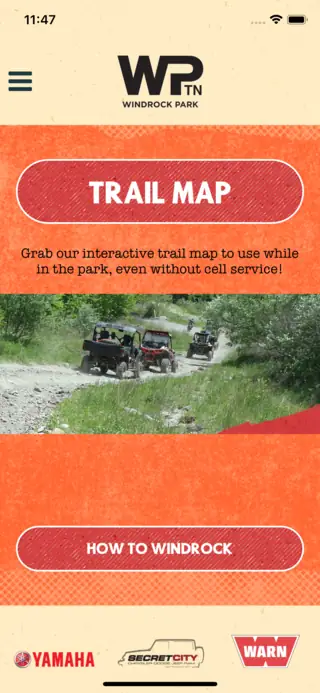
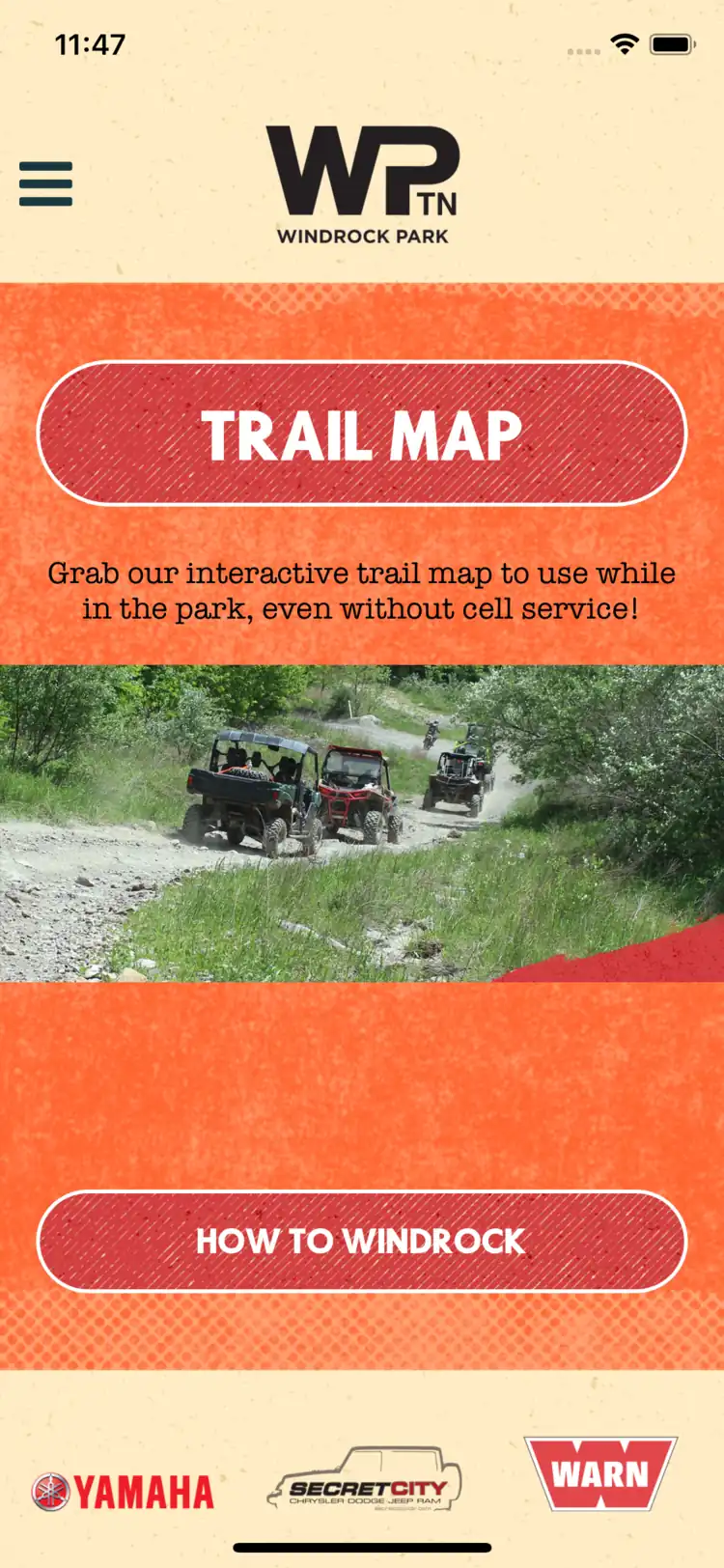
The home screen: the WP TN Windrock Park logo on beige, a red Trail Map button on a textured orange panel with the line 'Grab our interactive trail map to use while in the park, even without cell service!', a photo of side-by-sides on a trail, a How to Windrock button, and the Yamaha, Secret City and Warn logos.
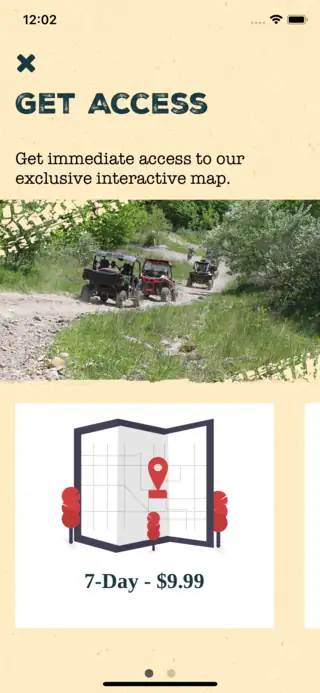
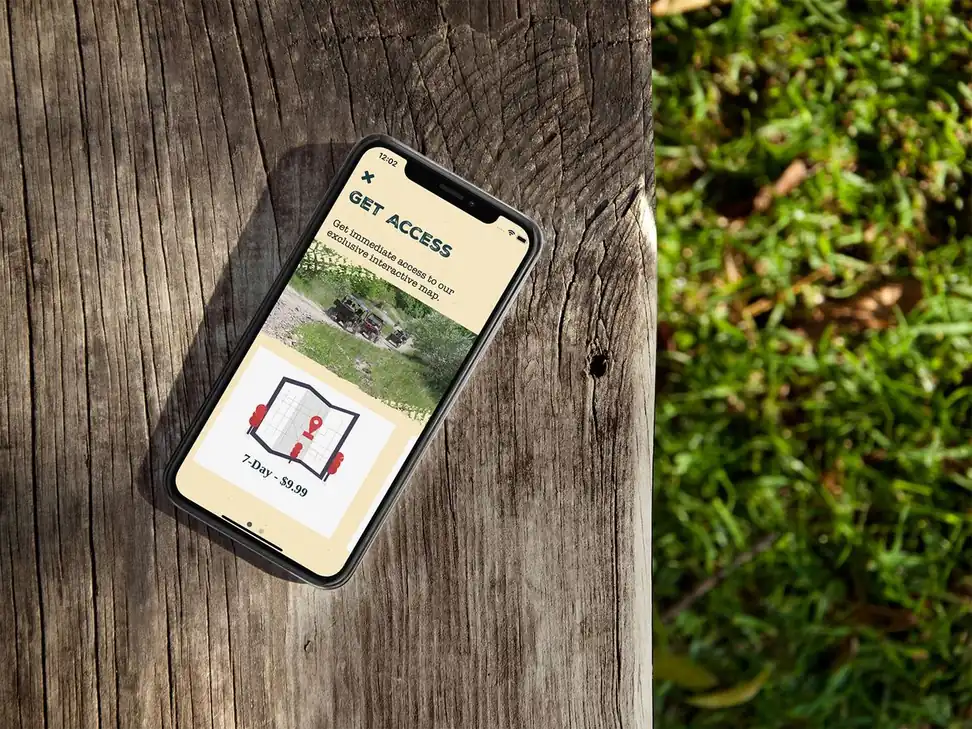
The Get Access screen: 'Get immediate access to our exclusive interactive map.', a photo of side-by-sides on a trail with a rough edge, and a card with an illustrated folded map for the seven-day option.

The brief

From paper to phone

Windrock Park, an off-road park in East Tennessee, sold its guests a paper map of the trails. They wanted an app instead: the same map, showing riders where they are on it, sold as an in-app purchase, with the park's events, campground and trail permits a tap away.

The challenge

No signal on the trails

Cell service is almost unavailable out on the trails, so the map had to work with no connection at all, find the rider by GPS alone, and still change whenever the park's trails did. Access had to be sold through both app stores, by a park that had never published an app.

What we made

One app, two stores

We built one React Native app for iPhone and Android, with the park's own map cut into tiles that download once and live on the phone, access for a week or a year sold as in-app purchases, and a way to publish a new map without a new version of the app.

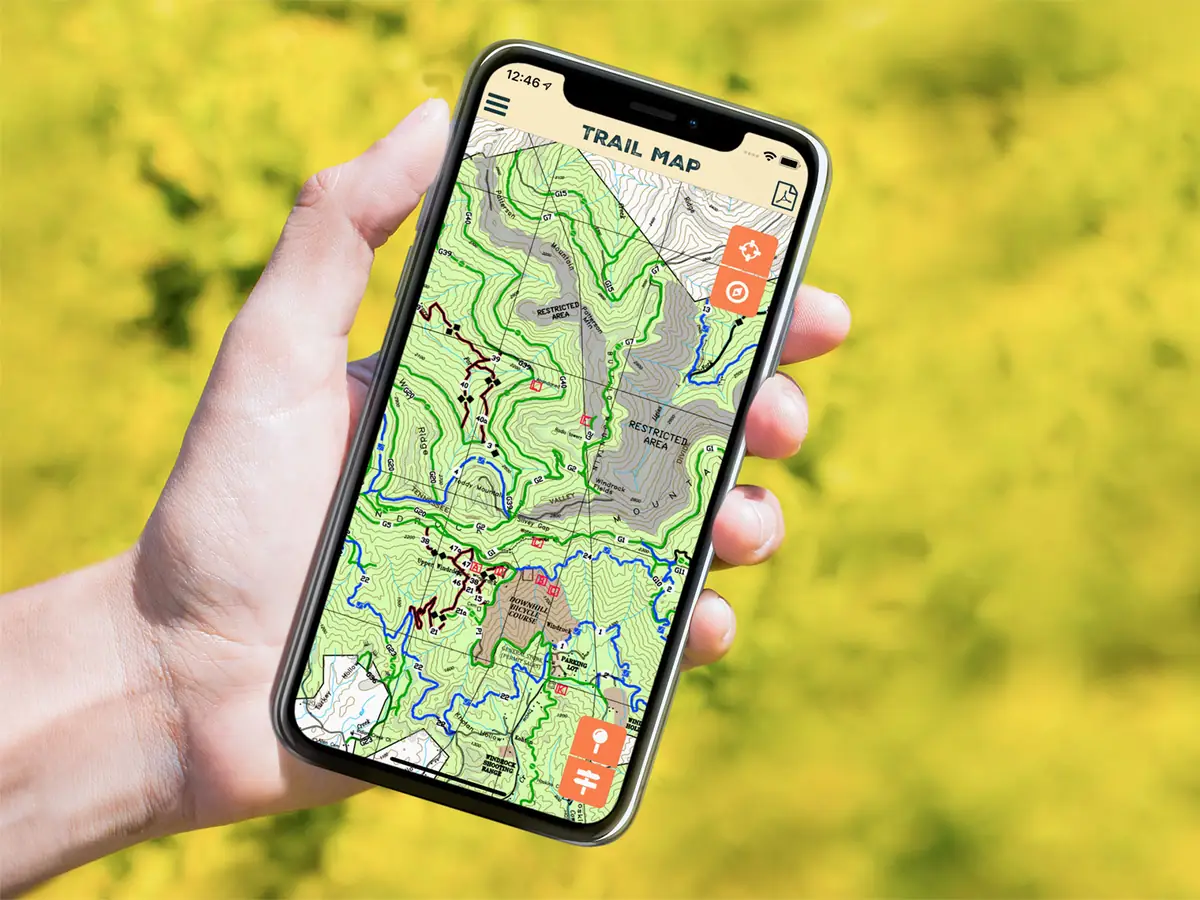
A hand holding a phone showing the Windrock Park app’s Trail Map: a topographic map with trails in green, blue, black and red, the restricted area in grey, and orange buttons down the right.

Discovery

An app instead of a paper map.

Windrock Park is an off-road park in the mountains of East Tennessee, with trails for four-wheelers, side-by-sides, Jeeps and bikes, and it sold its guests a paper map of all of them. Windrock called us wanting to explore offering an app instead. Having never created an app before, the team wanted to make sure it was indeed possible, talk through the challenges they could see coming and get a ballpark for the cost, so we had them to our office to go through it all in detail.

What came out of it, in the proposal they signed in November 2018, was one app for iPhone and Android, written once in React Native. It would carry the park’s map, show a rider where they are on it by GPS and work with no connection at all, with access sold as an in-app purchase through both stores, and links out to the park’s website for events, the campground and trail permits.

The team at Windrock had zero experience building software, so we walked everyone through the entire process, from discovery and design to development and launch.

The app icon: the black WP TN monogram on a rough, textured orange square.

The Look

A map you can use on an ATV.

We designed the app in-house, and the goal was something that felt intuitive to use as a digital map. It of course had to work offline, and it needed large touch targets, because people would sometimes be using it on an ATV while driving around off-road, and we wanted it to be as usable as possible there.

It took on the park’s own look: the WP TN logo, a warm beige paper texture behind every screen, a rough-printed orange, headings in Nexa Rust, a distressed typeface, and Futura and American Typewriter for everything else. The park’s website was being redesigned at the same time, so we worked alongside that, and we walked the team through an interactive demo of the app before writing a single line of code.

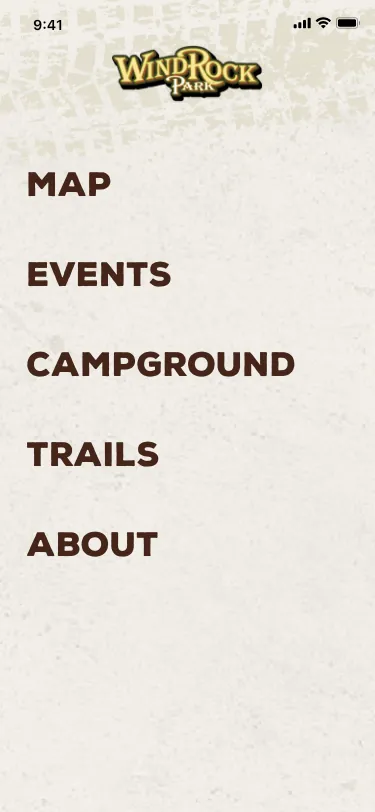
The first design of the home screen: the WindRock Park logo on beige, then Map, Events, Campground, Trails and About in large dark letters.
Version 1, December 2018
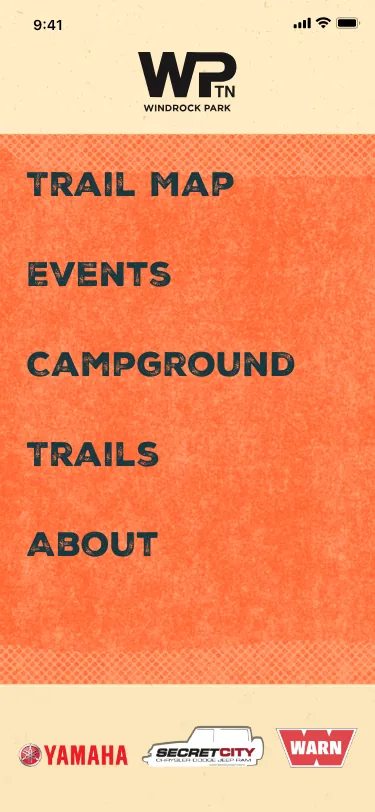
The fifth design of the home screen: the WP TN logo on beige over a textured orange panel listing Trail Map, Events, Campground, Trails and About, and a row of sponsors’ logos at the bottom.
Version 5, February 2019
The home screen as it shipped: the WP TN logo, a big red Trail Map button with a line about using it without cell service, a photo of side-by-sides on a trail, a How to Windrock button and the sponsors’ logos.
As it shipped, April 2019

Five Versions

From a menu to one big button.

The designs went through five versions between December 2018 and February 2019, from wireframes to high-fidelity screens of the icon, the loading screen, the menus, the purchase screens and the map itself. The home screen shows the change best. The first version was a plain menu under the WindRock Park logo, and the fifth put the same menu on the park’s rough orange under the WP TN logo, with the sponsors along the bottom.

Then in April, just before launch, the home screen became what the app was for: one big red Trail Map button, a line saying you can use it without cell service, a photograph of the trails, and the rest of the menu in a drawer.

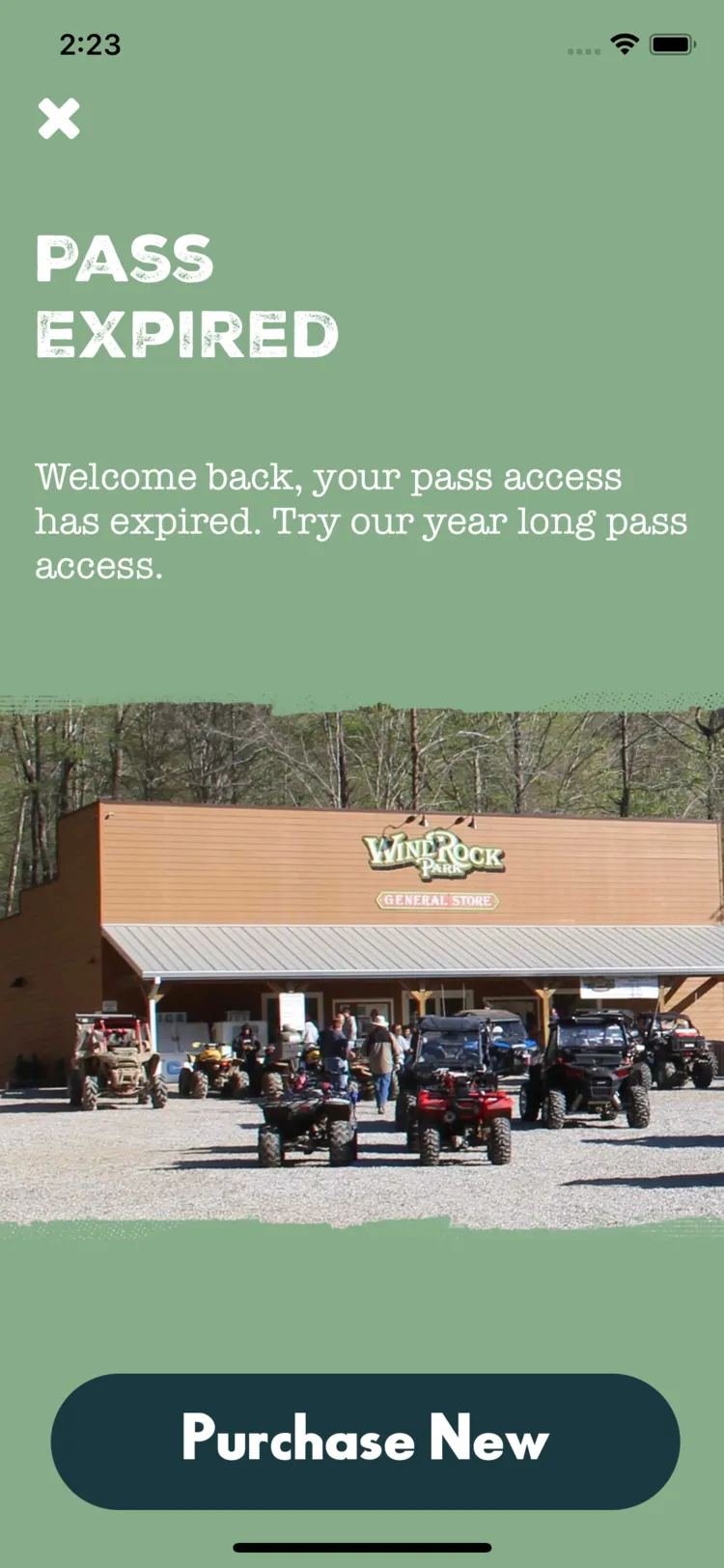
The Pass Expired screen on sage green: a line welcoming you back and suggesting the year-long pass, a photograph of the park’s general store with side-by-sides parked in front, torn at the edges, and a dark Purchase New button.
Pass Expired
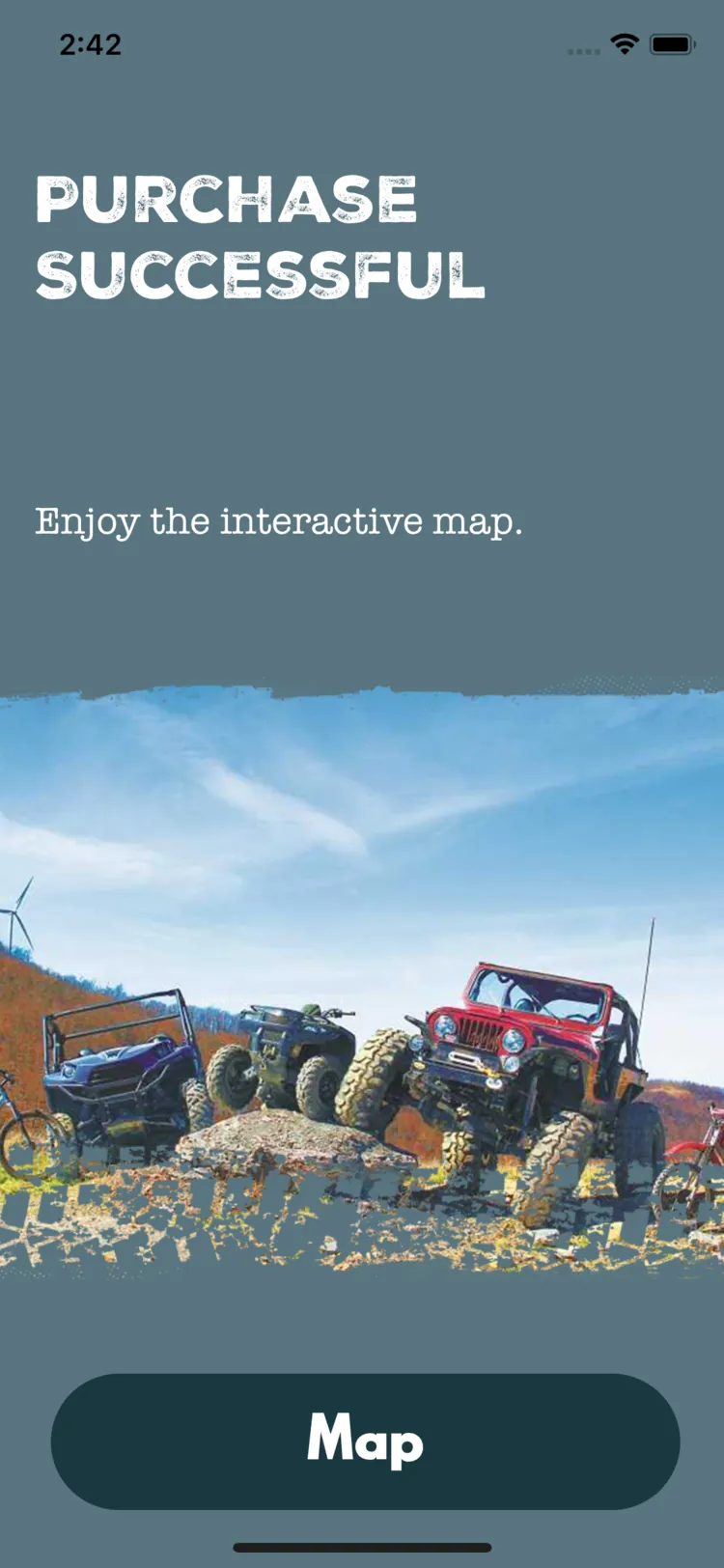
The Purchase Successful screen on slate blue: ‘Enjoy the interactive map.’, a photograph of side-by-sides, a Jeep and bikes on a rocky ridge under wind turbines with torn edges, and a dark Map button.
Purchase Successful

Photographs

Real places on the screens that sell the map.

The three screens around buying the map, Get Access, Pass Expired and Purchase Successful, each have a photograph, of the trails, the general store and the machines people bring to the park, set in with a rough, torn edge like the rest of the park’s look. Each has a colour of its own behind it: beige, sage green and slate blue.

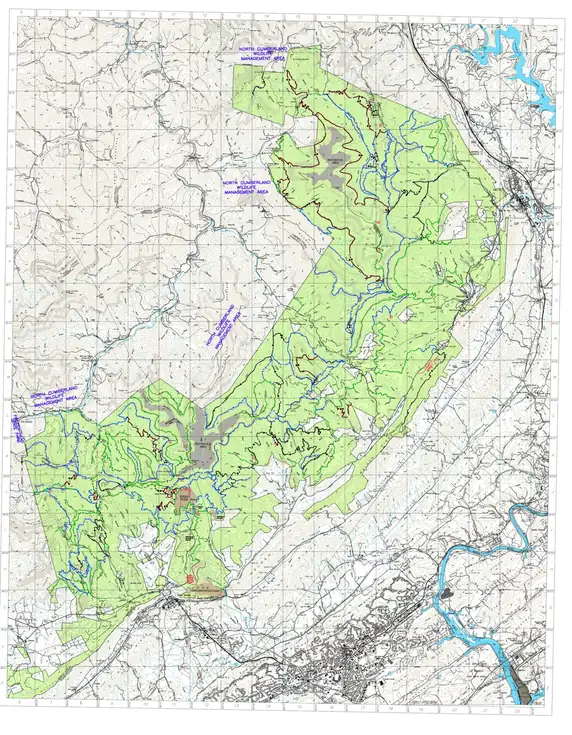
The whole of the park’s trail map as the app’s tiles have it: a topographic map with a lettered and numbered grid, the park’s land in green running from the south-west corner to the north-east, trails in green, blue, black and dark red across it, the town and a river in blue to the south-east.

The Map

Cutting the paper map into tiles.

The heart of the app was the map, and the plan was to turn the park’s paper map, a detailed topographic map of every trail with a lettered and numbered grid, into map tiles with Mapbox. We built it that way first, in early March 2019, with a styled Mapbox layer and its offline downloads, but Mapbox gave us trouble on Android with React Native, so we switched to Google’s map, with our own tiles laid over it.

What replaced it starts with the park’s full-page trail map as one very large image. Rather than rely on its world file, it was placed by the coordinates of its corners in Tennessee’s state-plane grid, which lined it up with the ground when checked against Interstate 75, and then MapTiler Desktop cut it into square tiles, with the app using seven zoom levels, 9 to 15. The paper map’s grid squares are one minute of latitude by one minute of longitude, and the tiles sit on them, so the blue dot for the rider lands where the rider really is.

All 1,446 tiles go into one zip file of about 35MB. The app downloads it once, unzips it into its own storage and hands the tiles to react-native-maps as a layer read straight off the phone, over Google’s map on both iPhone and Android. Nothing on the map needs a connection after that, and the blue dot comes from GPS alone.

Updates

A new map, without a new app.

Trails change, and the park needed the map to change with them without a new release of the app for Apple and Google to review. So next to the zip file, on Amazon’s CloudFront, sits a small text file holding a single number, the map’s version. Every time the trail map opens, the app compares that number with the one it saved when it last installed the map, and if a newer map has been published, it shows a download screen first: an orange pie filling up as the new map comes down, then “installing new map” while it unzips, and then the map.

The app only records the new version once the tiles are unzipped, so a map that didn’t finish installing is simply fetched again the next time. And because the download is 35MB and the park has almost no signal, the purchase screen asks you to get the map while you still have WiFi or cellular data. When the park’s 2019 map arrived that September, it went through the same steps, and by the end of October 2020 the map was on version 7.

Try it

Find the Waterfall

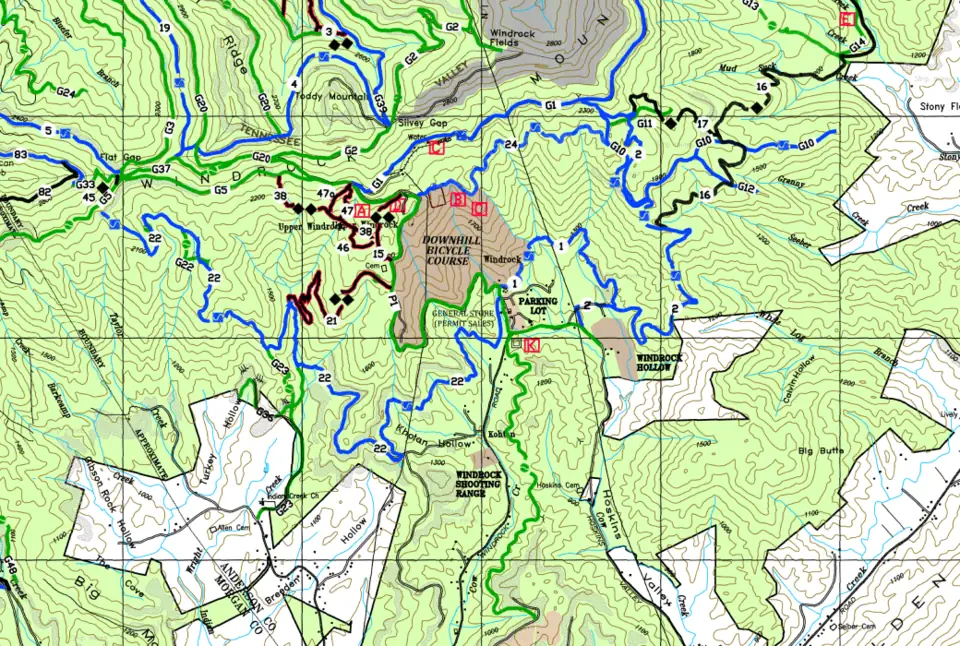
This is the trail map from the same tiles the app downloads, as it stood at the app’s last map, version 7 from October 2020, so it may well not match the park’s trails today. It’s shown at two of its zoom levels, with the app’s own buttons, and it opens where the app did, on the general store. The compass brings you back there, the pin opens the Trail Guide, the map’s legend, and the signpost opens the Points of Interest, both word for word from the app.

In the app, that list gave each place’s grid square and left the finding to you. Here, pick one, like E for the waterfall, and the map takes you to it, or tap a red letter on the map itself. What we left out is the menu, the Index and the crosshairs, which found you on the map and only makes sense at the park.

The park’s trail map around the general store: green park land, trails in green, blue, black and dark red with their numbers, the downhill bicycle course, the parking lot and the restricted area on the hill above, with red lettered boxes for the points of interest.

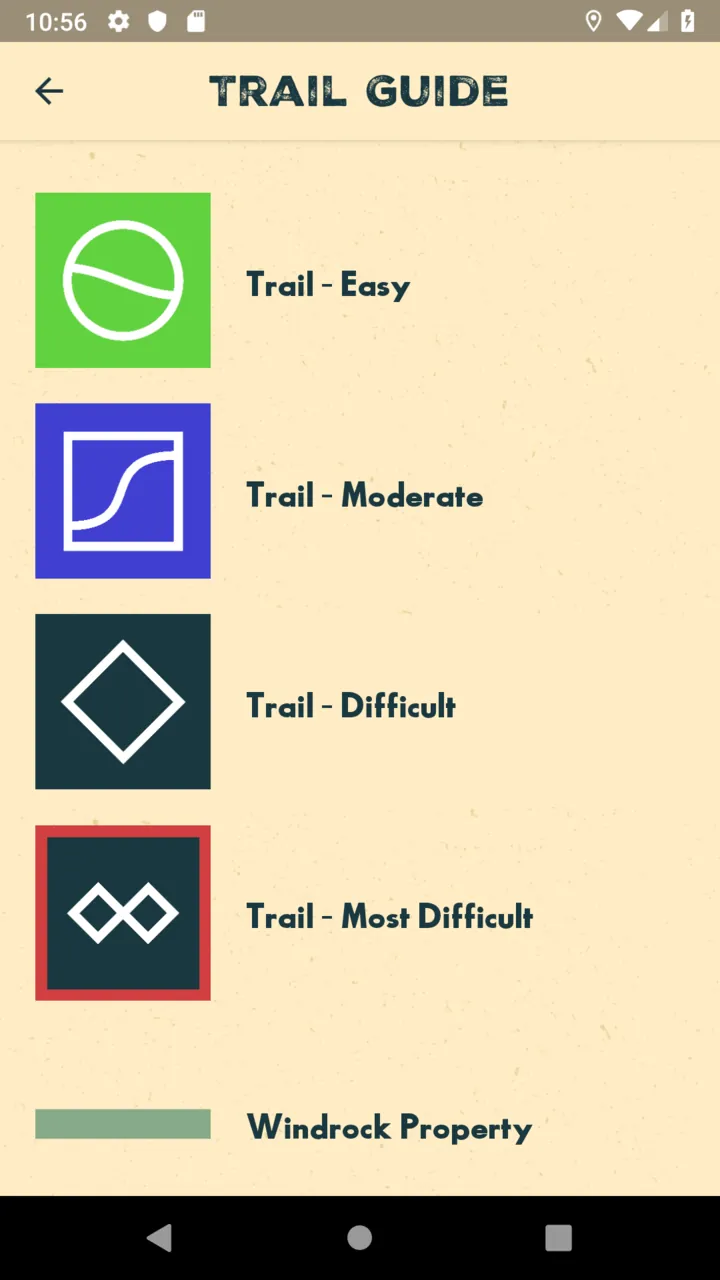
Trail Guide

  • Trail - Easy
  • Trail - Moderate
  • Trail - Difficult
  • Trail - Most Difficult
  • Windrock Property
  • Bicycle Course
  • Paved Road
  • Railroad
  • City/County Line
  • Stream
  • Restricted

Points of Interest

Drag the map or use the arrow keys to move around it, and plus and minus to zoom.

A phone lying on a weathered wooden post, showing the app’s Get Access screen: a line about getting immediate access to the interactive map, a photograph of the trails, and a card with an illustrated folded map for the seven-day option.

Buying the Map

A week on the trails, or a year.

Access to the map is sold in the app, through Apple’s and Google’s own in-app purchases, as access for seven days or for a year. Open the trail map without it and you get the Get Access screen instead, with the two options to swipe between, and once your access runs out, an Expired screen offers the year.

It isn’t a subscription. It’s a purchase the app uses up the moment it goes through, then records on the phone with the date it runs out, seven or 365 days later, which is why the screen says plainly that it’s only available on that device. In the simulator the same purchases lasted two minutes and five, so we could watch one run out while testing.

One case on iPhone needed a screen of its own. When the App Store wants a buyer to confirm their payment details first, the purchase comes back as a failure, even though it can still go through a moment later. So in April 2019, just after launch, we added a second listener for exactly that case and a Processing Transaction screen that waits for the App Store and moves on to success when it finishes.

The Trail Guide on an Android phone: the map’s legend on beige, each a white mark on a coloured square: a circle on green for Trail - Easy, a curve on blue for Moderate, a diamond on dark teal for Difficult and two diamonds, bordered in red, for Most Difficult, then a green bar for Windrock Property.
Trail Guide
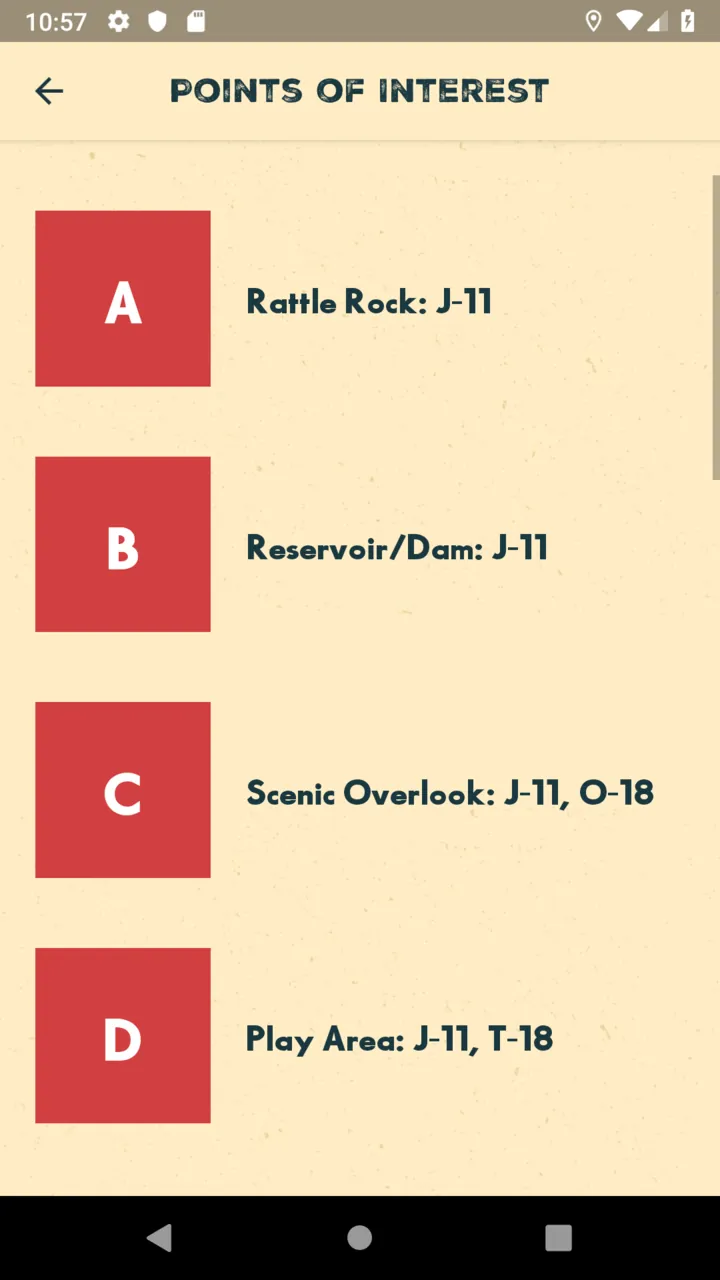
The Points of Interest on an Android phone: red squares lettered A to D beside Rattle Rock: J-11, Reservoir/Dam: J-11, Scenic Overlook: J-11, O-18 and Play Area: J-11, T-18.
Points of Interest

Everything Else

The rest of the park, in your pocket.

Two months after the proposal was signed, the park asked for more, and we added it: a Trail Guide with the map’s legend, a list of the points of interest with their grid squares, the park’s Trail Index, a table of every trail with who can ride it, how hard and how long it is and where to find it on the map, and a row of sponsors’ logos on the home screen. They also wanted to reach everyone with the app at once, so we set up push notifications the park could send from an online dashboard, through OneSignal.

The rest is the park’s website, a tap away in the menu: events, the campground, trails and online permits, and about, each opened in a browser inside the app. The Trail Index was updated too, from the 2018 index we started with to a new one in May 2020.

A rider in a pink helmet driving an ATV through deep mud, spraying mud all around.

Launch & Beyond

In both stores, and looked after.

We set the timelines early, made sure Windrock knew of every account it needed to publish on the App Store and Google Play, and watched the rollout as a whole. Apple turned a submission down over how the app explained its use of location, we rewrote the explanation, and Windrock Park went live on the App Store on 12 April 2019.

After launch we kept looking after it on an hourly basis: an update in the first week for a few small changes, the purchase fix, new sponsors and the new Trail Index, and upgrades to Expo’s SDK, from 32 to 34 in August 2019 and to 35 that October. Our last release was version 1.1.4, on 1 August 2020.

The Craft

One codebase, ejected

It began in February 2019 in Expo’s managed workflow and was ejected to ExpoKit less than two weeks later, so it could take native libraries of its own: the ones for the map’s files and zip archive, the in-app purchases and the push notifications all came after. The JavaScript still shipped through Expo’s release channels, a staging channel for testing and one for each version in the stores.

Released by script

Builds for both stores ran through fastlane. One command bumped the build number and sent the iPhone app to TestFlight, another sent the Android app to Google Play’s internal testing track, and the signing certificates and test devices were managed the same way.

Logs from the field

To see what happened on phones out at the park, from April 2019 the app sent its logs and crash reports to Bugfender. Every step of a purchase was written down, from the options the store offered to the purchase being saved on the phone.

Asking for little

The Android app asks for far fewer permissions than the project it grew from, and the reason the app gives for wanting your location says exactly what it does with it: show where you are on the map, and centre the map on you.